Your Insurance, On Your Schedule
Certificates, policies, billing, documents, renewals and claims, all in one secure place. Here’s how to use every part of it.
Everything about your coverage, in one place
Our client portal is built and run by our firm, not an outside vendor. Watch the short tour, then jump to any feature below for step-by-step instructions.
Choose a feature to see how it works
Signing in
Password, emailed link or texted code.
See how →02Your dashboard
Your policies, renewals and team at a glance.
See how →03Renewals
Five quick minutes before we go to market.
See how →04Policies and coverage
Every policy, with limits on file.
See how →05Paying your bill
The right payment page for every policy.
See how →06Documents
Policies, certificates and loss runs, organized.
See how →07Certificates of insurance
Request a COI any time, often issued instantly.
See how →08Changes, quotes and your requests
Changes and quotes, tracked to completion.
See how →09Claims
Report a claim and follow it through.
See how →10Contract Review
Know what a contract requires before you sign.
See how →11Your team and multiple businesses
Coworker access and multiple businesses.
See how →12Resources and the glossary
Plain-English guides and a 700+ term glossary.
See how →Signing in
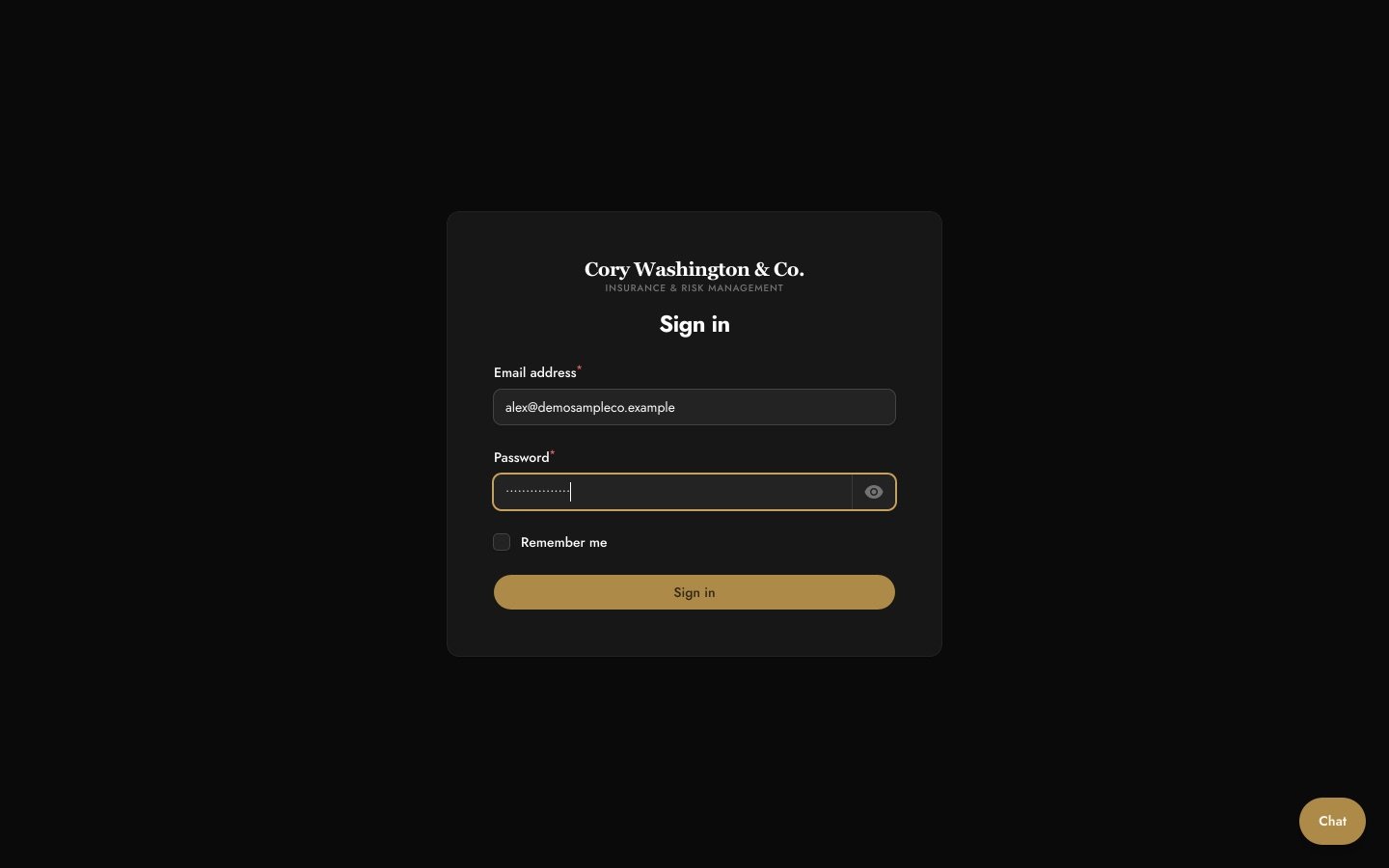
- Go to clientportal.corywashington.com and sign in with your email and password.
- No password handy? Enter your email and choose Email me a sign-in link, or Text me a sign-in code to get a code at the mobile number on your account.
- Don't have a login yet? Ask us for an invite, or choose Sign up and use your email and one of your policy numbers.
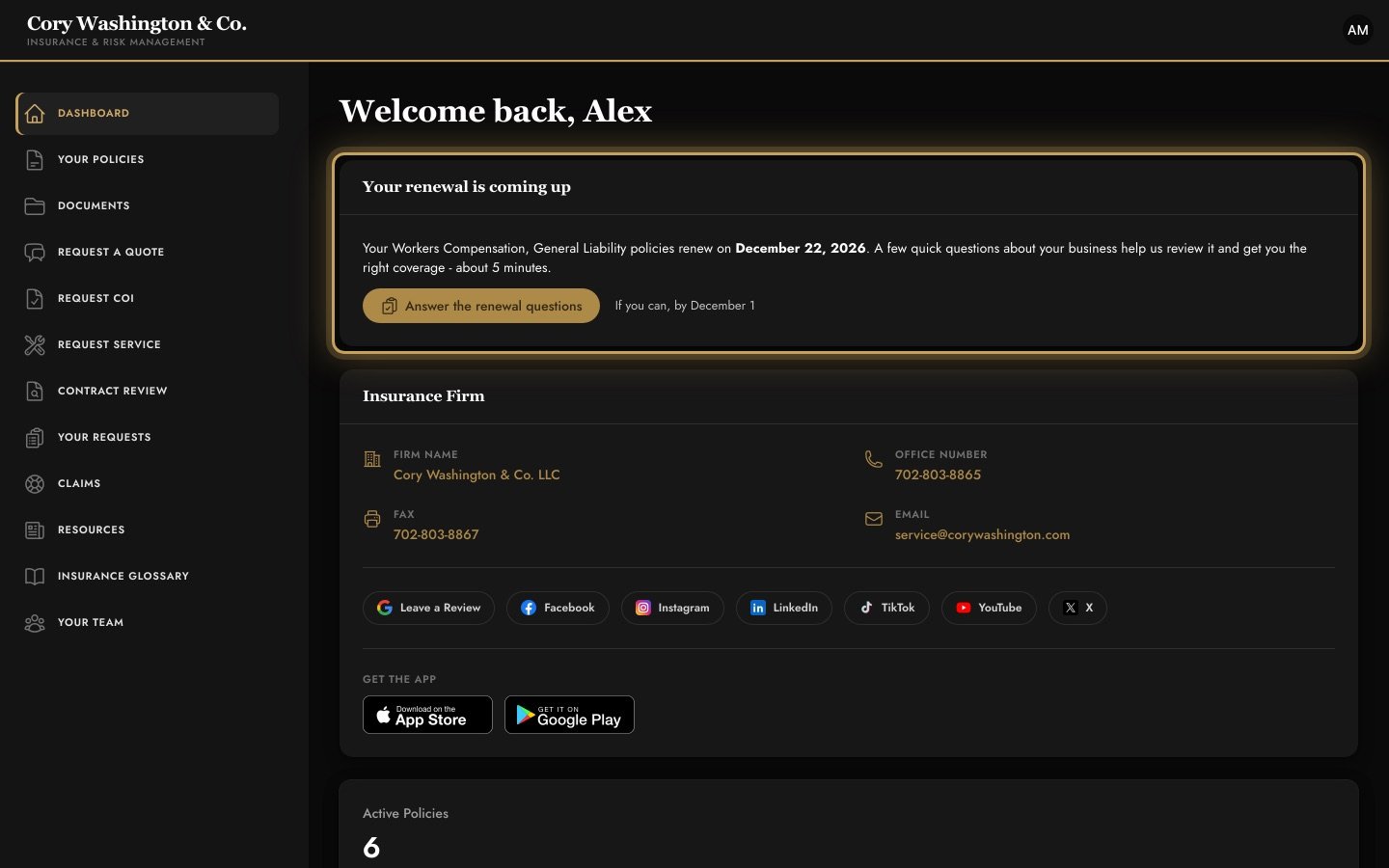
Your dashboard
- Your dashboard is home base: how to reach our team, your active policies, upcoming renewals, and anything that needs your attention.
- Further down, Coverage Worth Knowing About explains coverages many businesses carry, so you can ask us about anything you're unsure of.
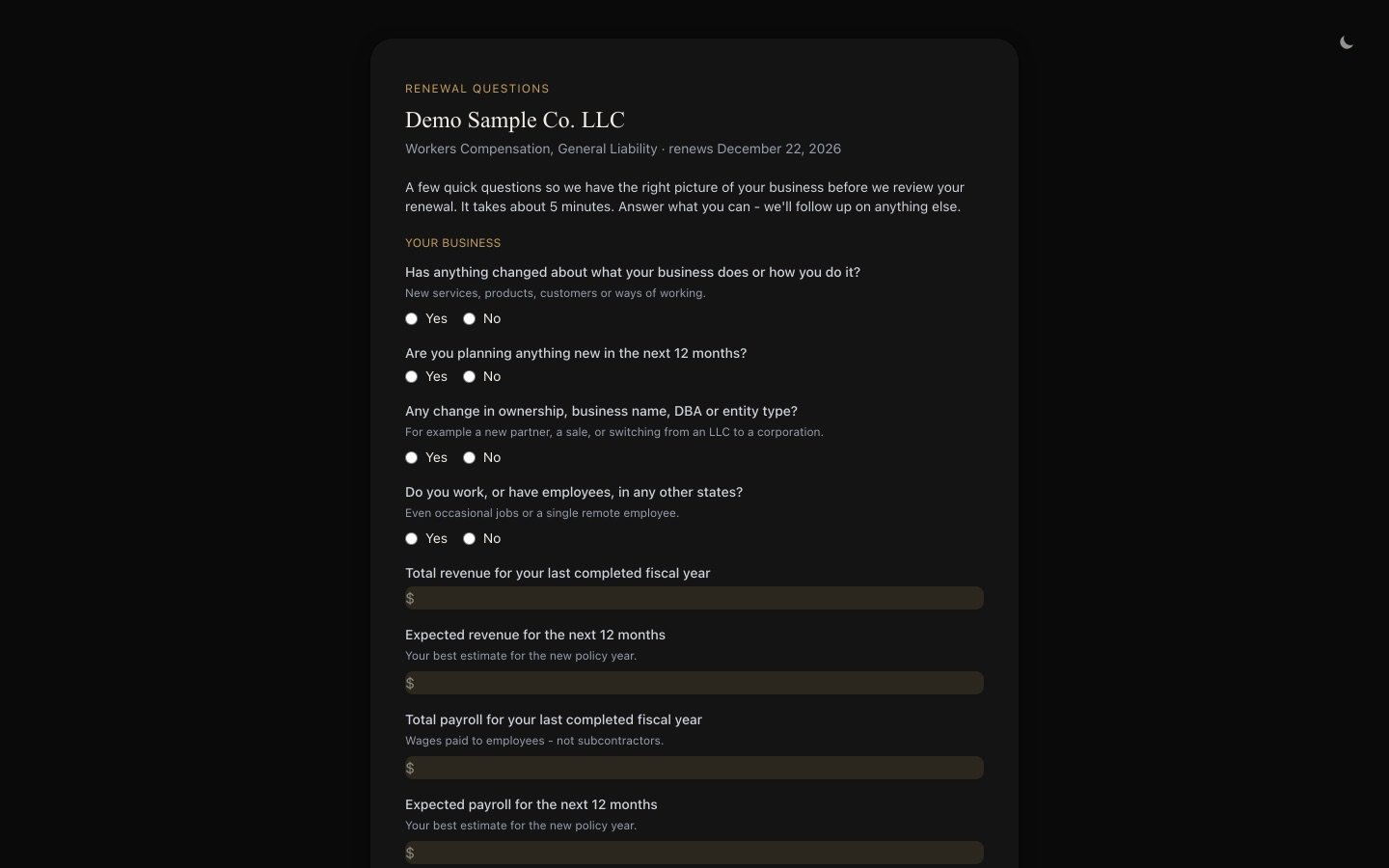
Renewals
- About three months before renewal, you'll see Your renewal is coming up. Answer a few quick questions about your business - it takes about five minutes - so we can review your coverage properly before we go to market.
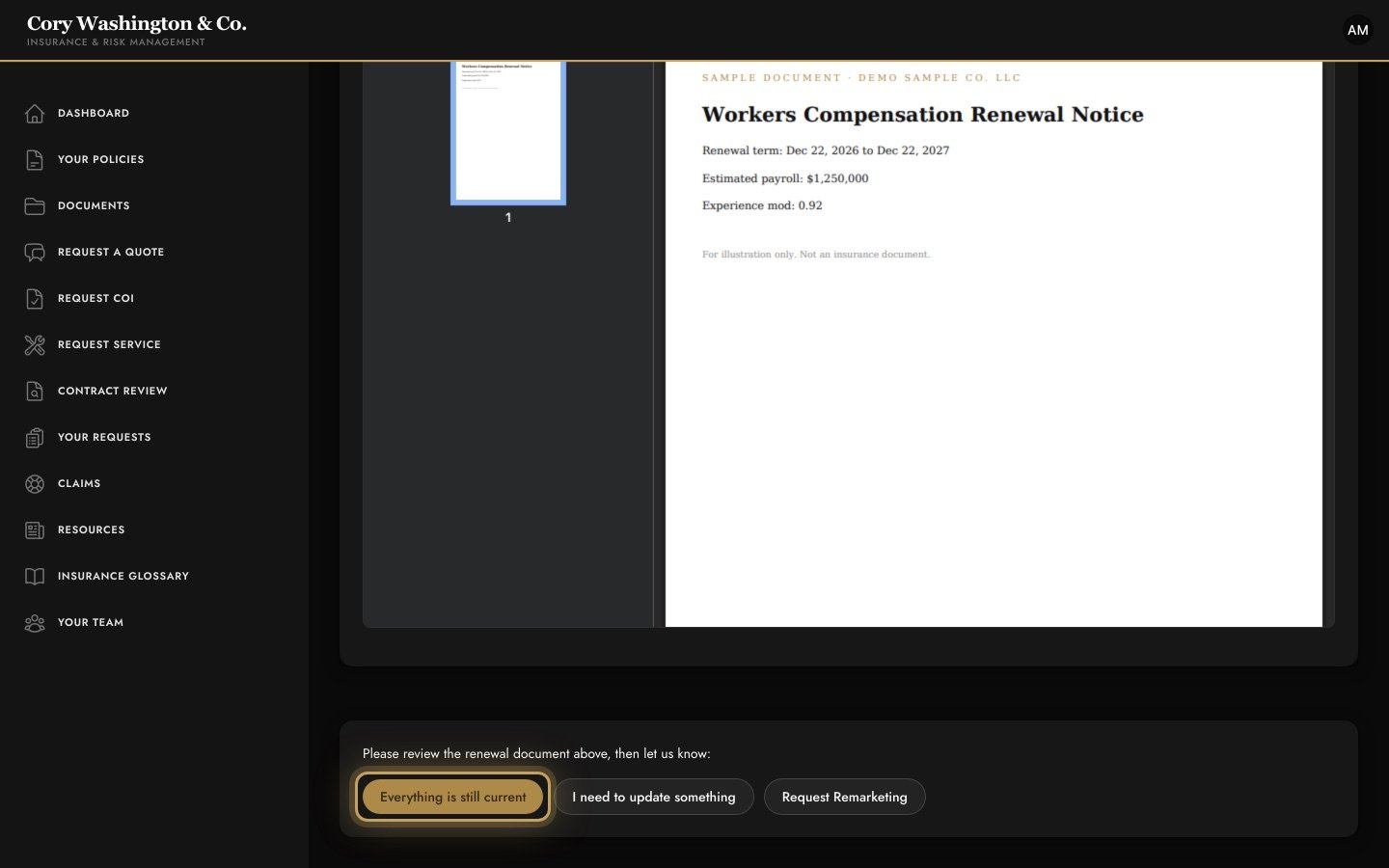
- When your renewal arrives, open it from the dashboard and choose Everything is still current, I need to update something, or Request remarketing if you'd like us to shop it.
Policies and coverage
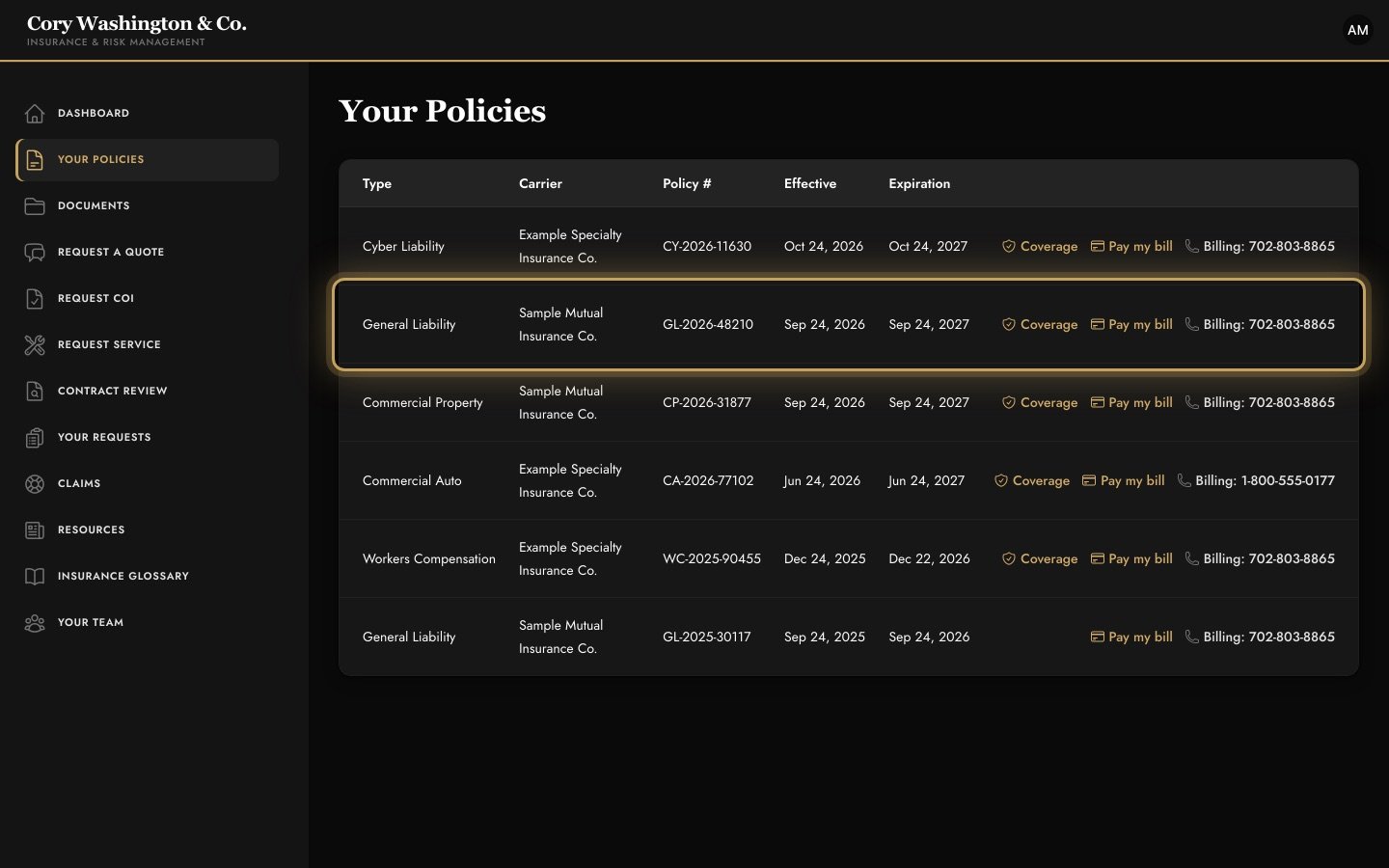
- Your Policies lists every policy with its carrier, policy number and term.
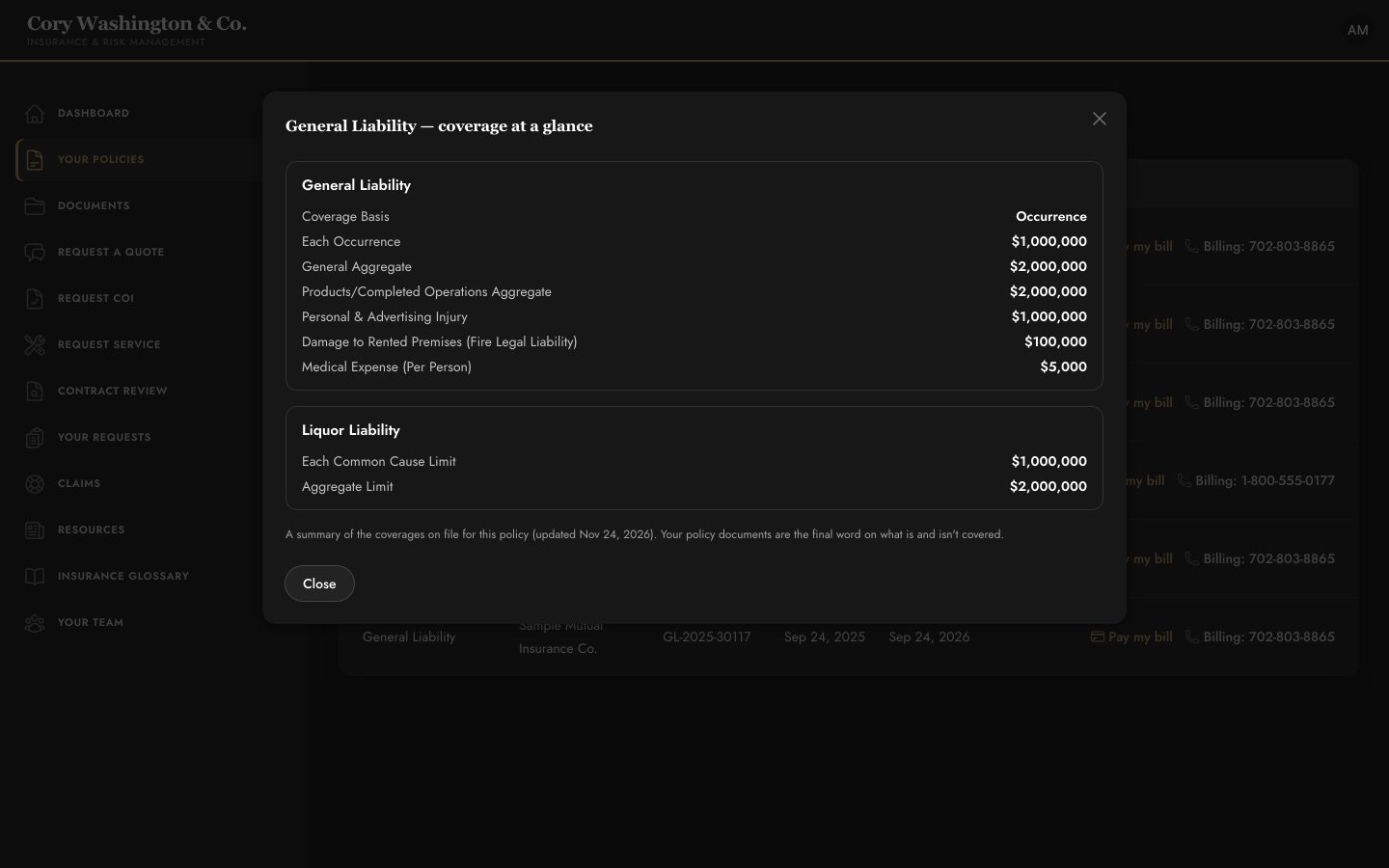
- Choose Coverage on any active policy to see the limits on file at a glance. Your policy documents are always the final word on what is and isn't covered.
Paying your bill
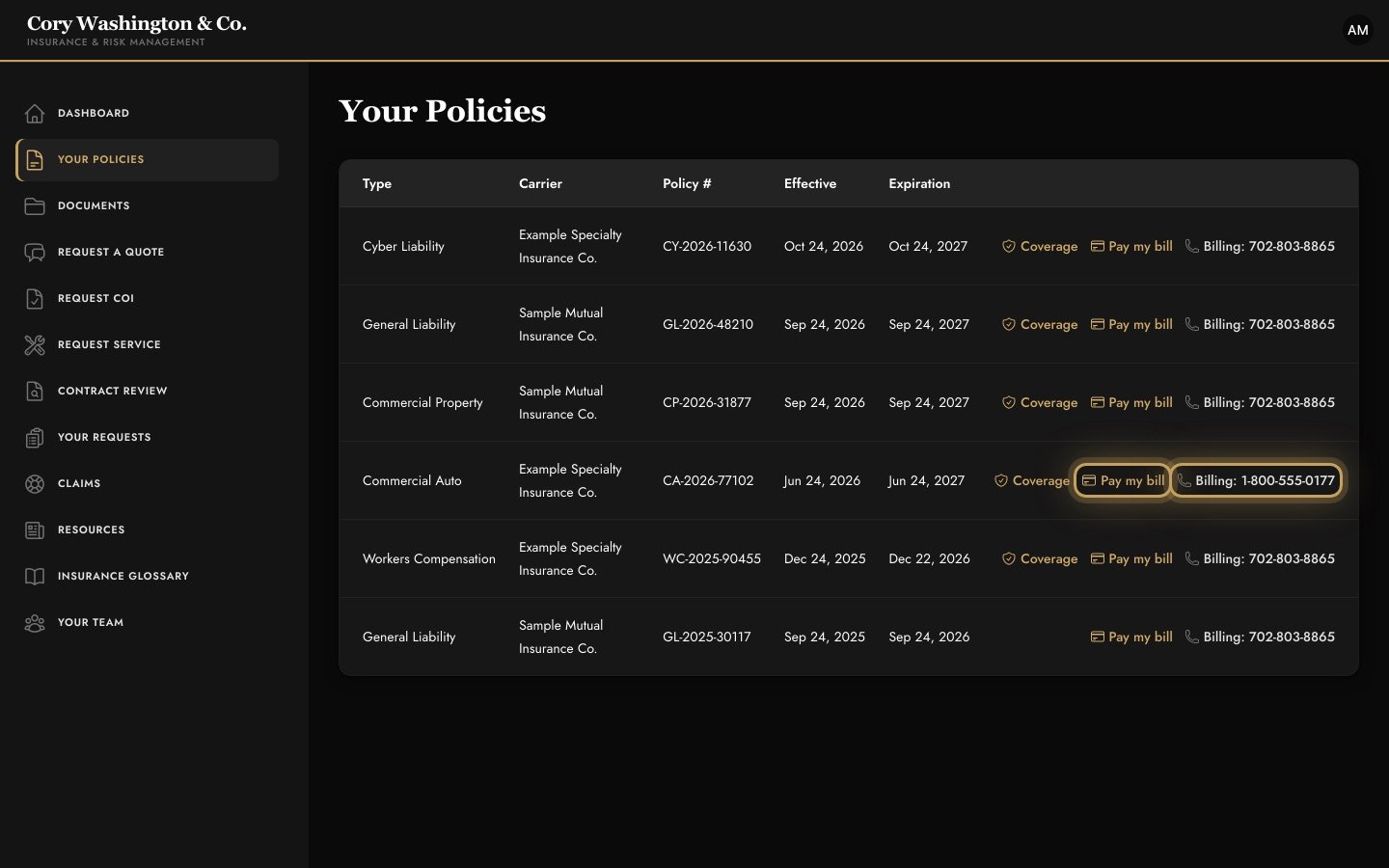
- Each policy shows Pay my bill, which opens the right payment page whether we bill you or the insurance company does, along with the billing phone number.
Documents
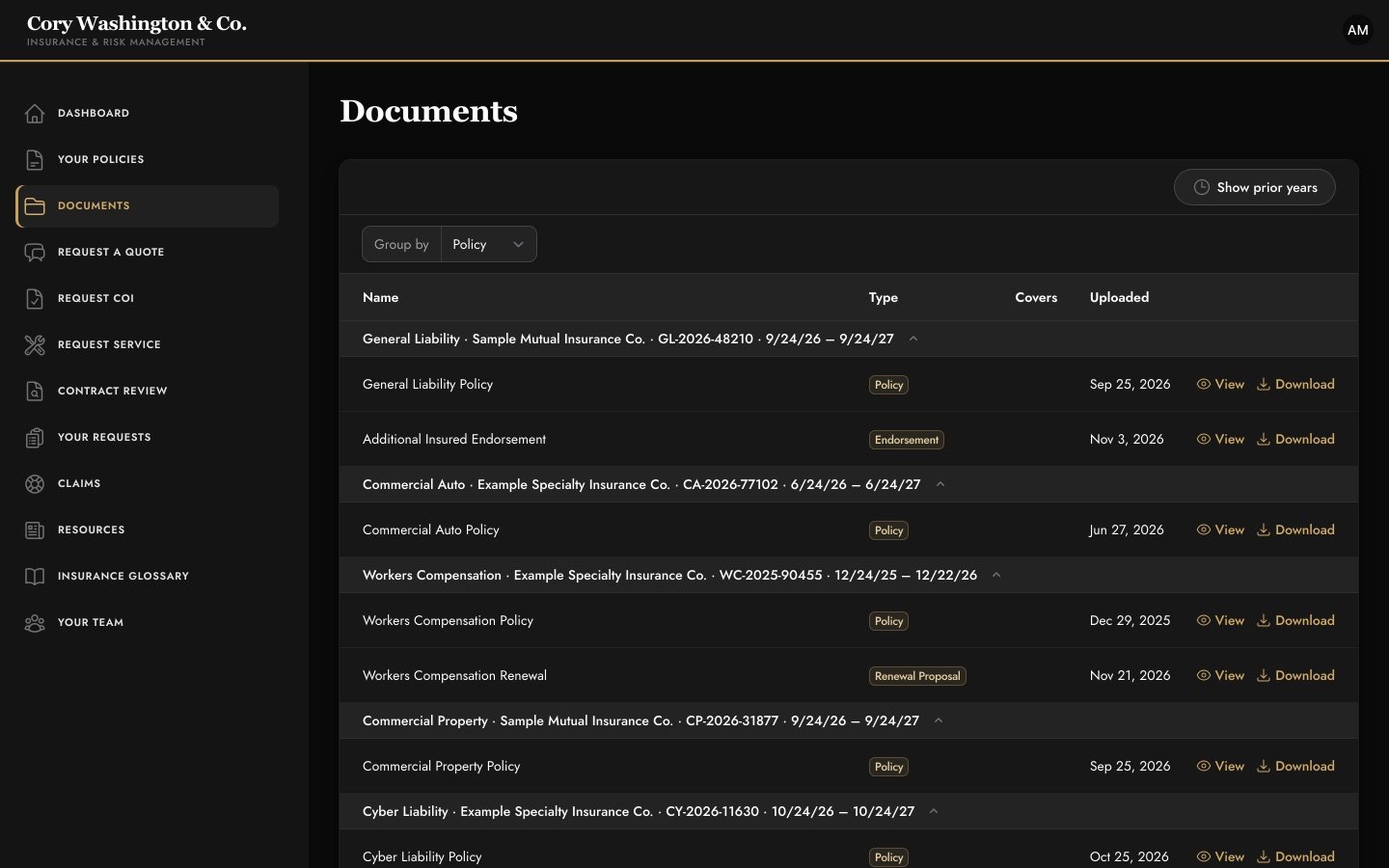
- Documents are organized for you: your current policies, certificates, and general documents like loss runs. Choose Show prior years to see past terms.
- Open any document in your browser or download it.
Certificates of insurance
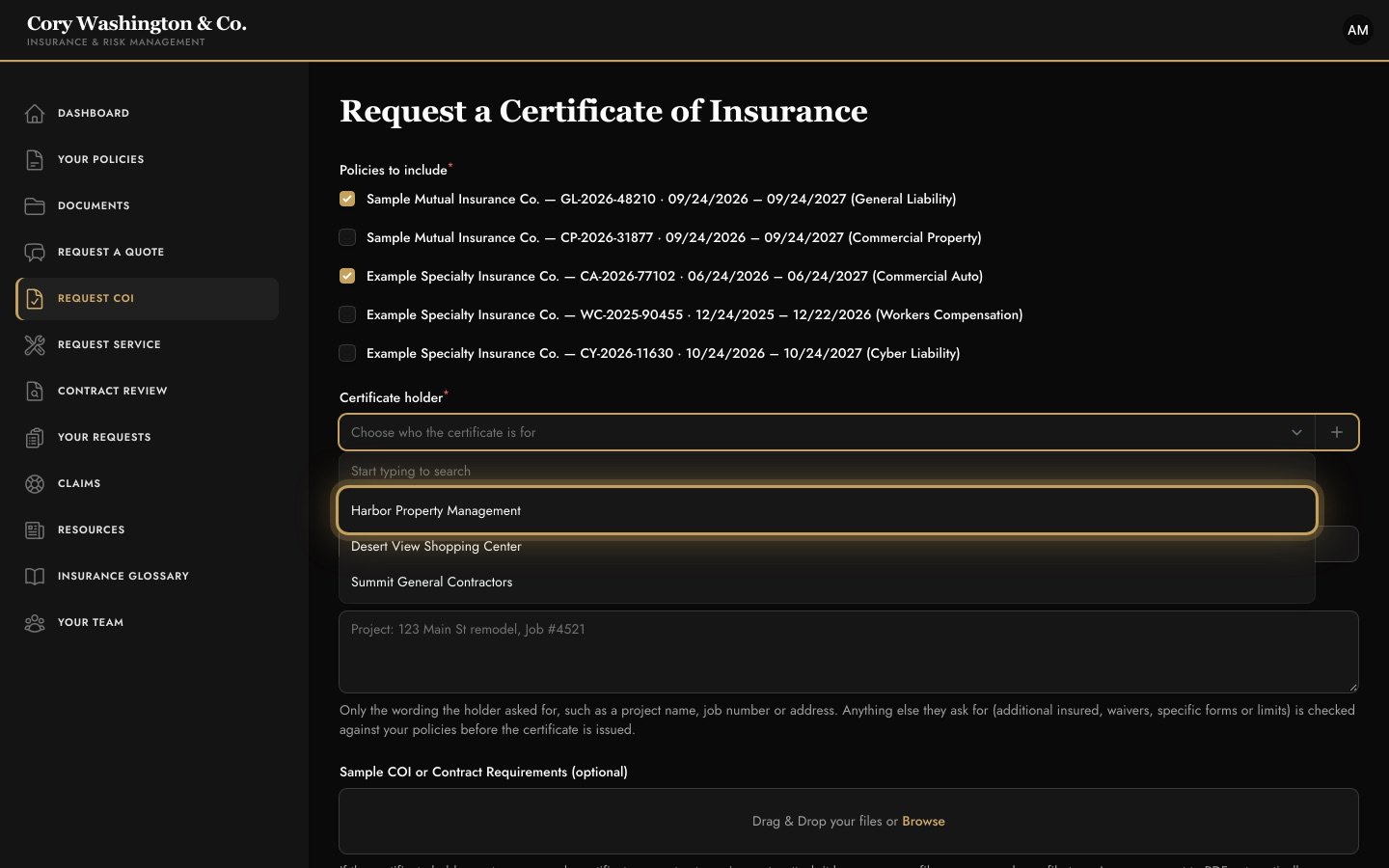
- Go to Request COI, check the policies to include, and choose who the certificate is for. Need a new certificate holder? Choose Add a new certificate holder.
- Add a project or job number if the holder asked for one, confirm, and send.
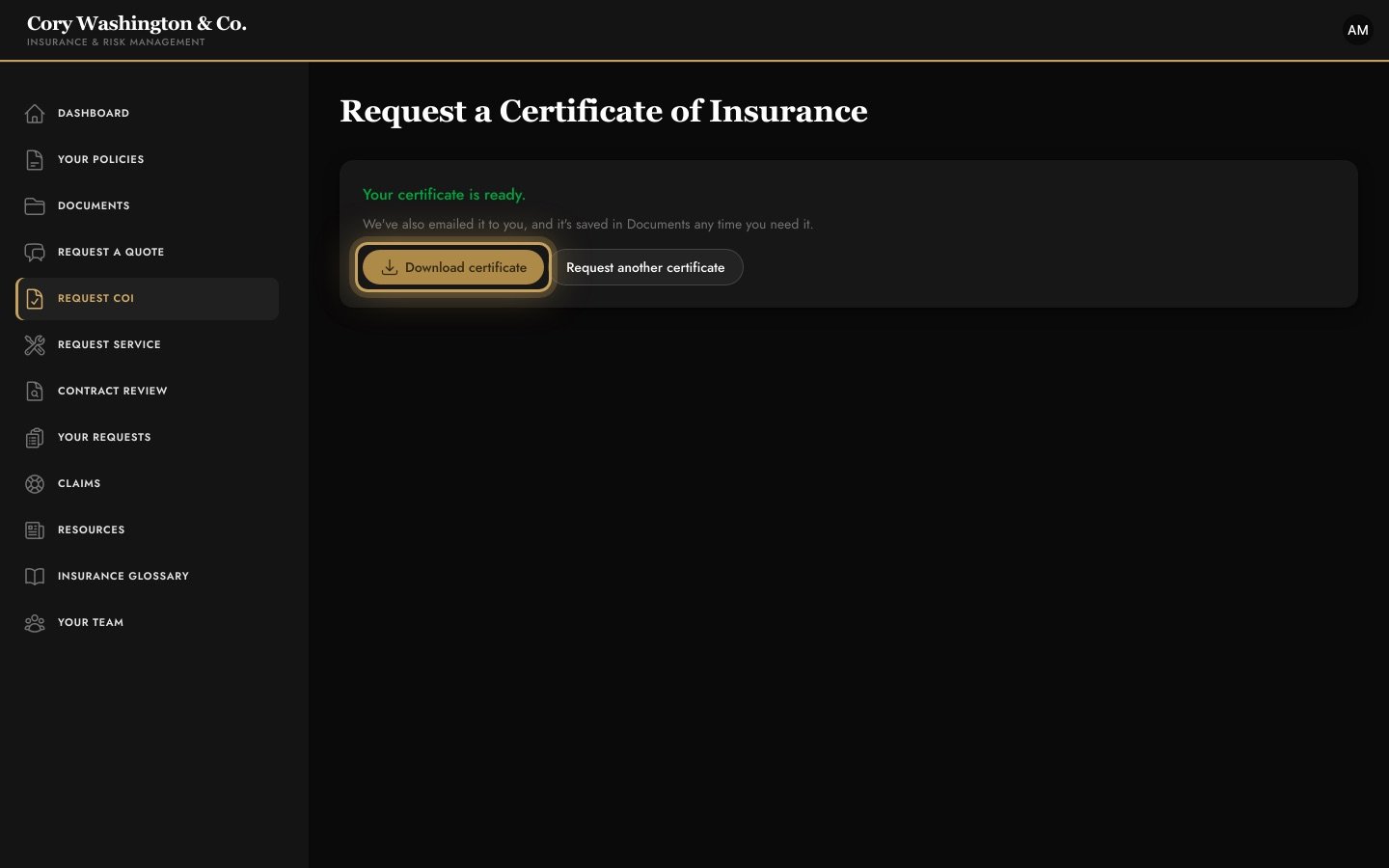
- When everything checks out, your certificate is issued right away and saved in Documents. If anything needs a closer look - special wording, an attached contract, or a policy change - our team reviews it and sends it back.
Changes, quotes and your requests
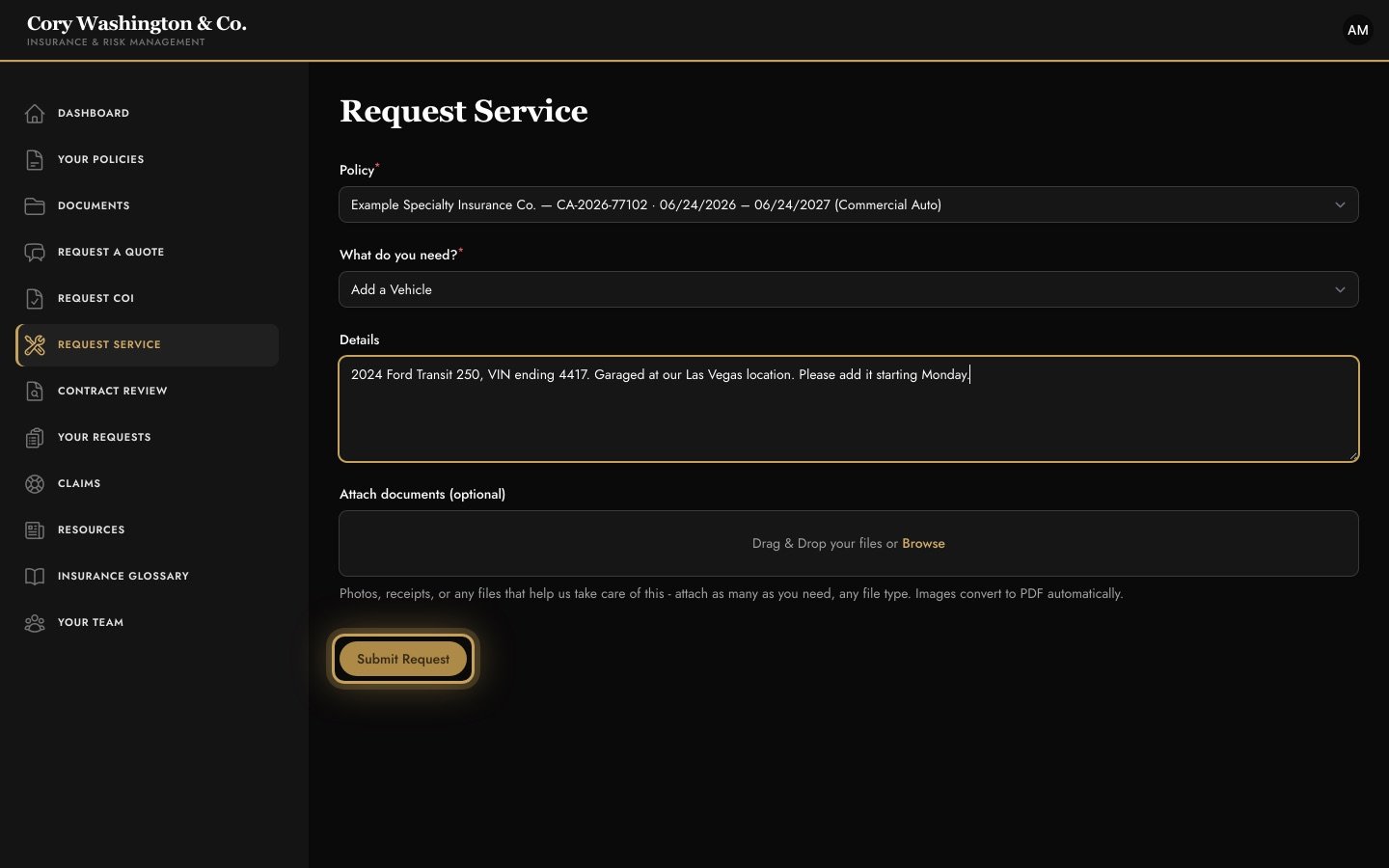
- Request Service handles everyday changes: add or remove a vehicle, driver or location, change an address, add a mortgagee or loss payee, request documents and more.
- Request a Quote lets you ask about any coverage, from general liability to cyber.
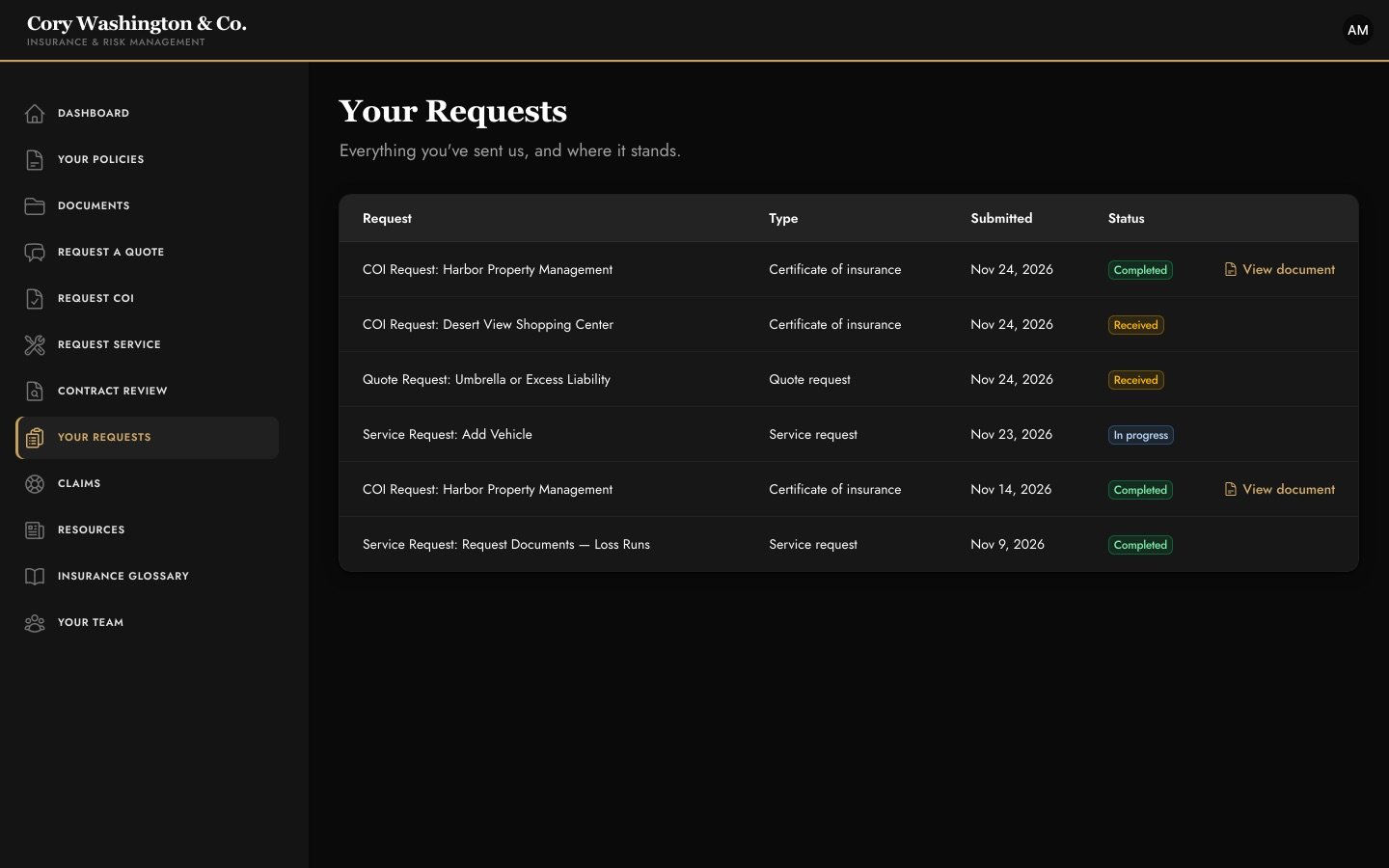
- Your Requests shows everything you've sent us and where it stands, with the finished document attached when it's done.
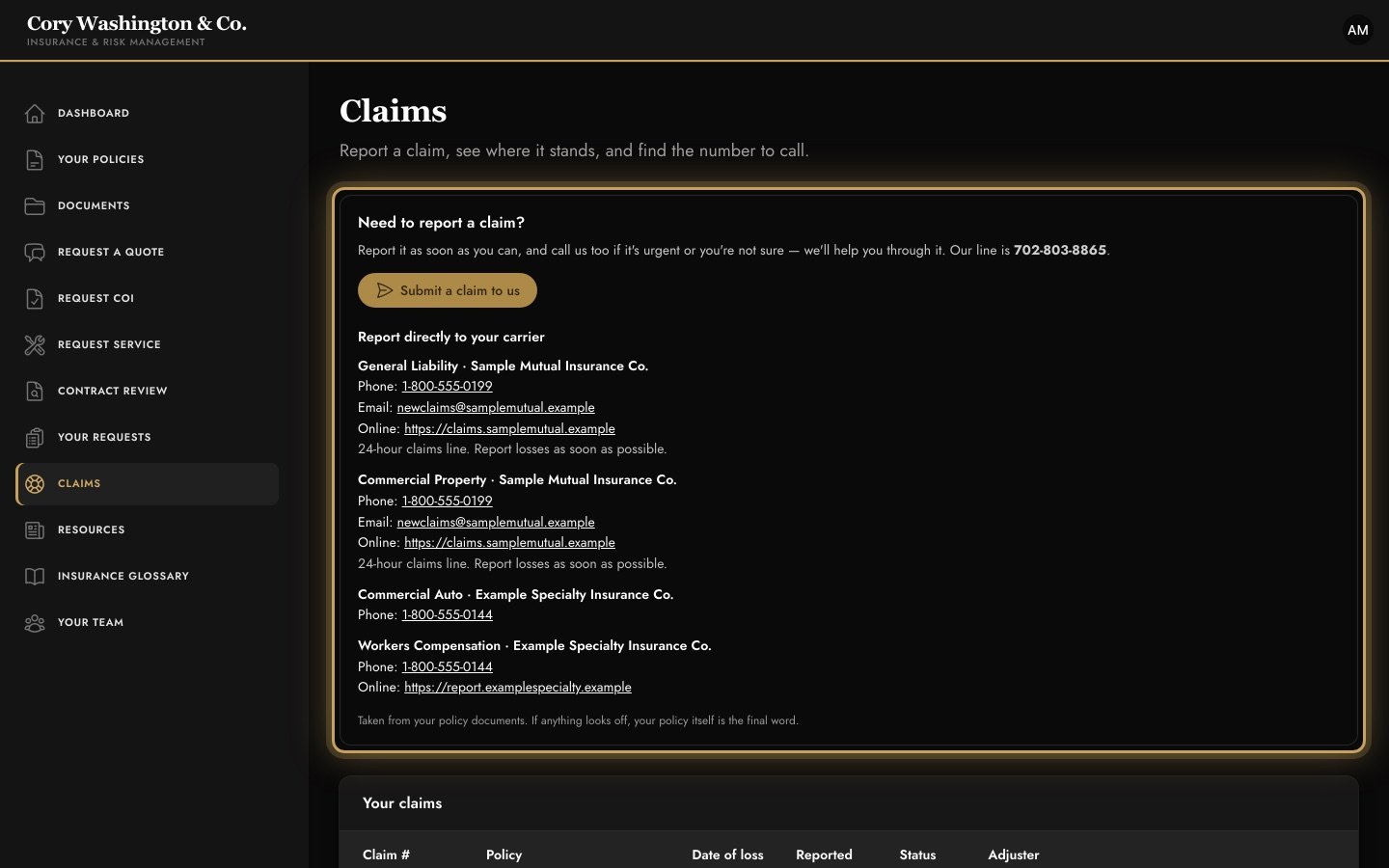
Claims
- Report a claim to us with Submit a claim to us, or report it directly to your insurance company using the claims contact we keep for each policy.
- Once a claim is open, you can follow its status and see your adjuster's contact details. If it's urgent, call us.
Contract Review
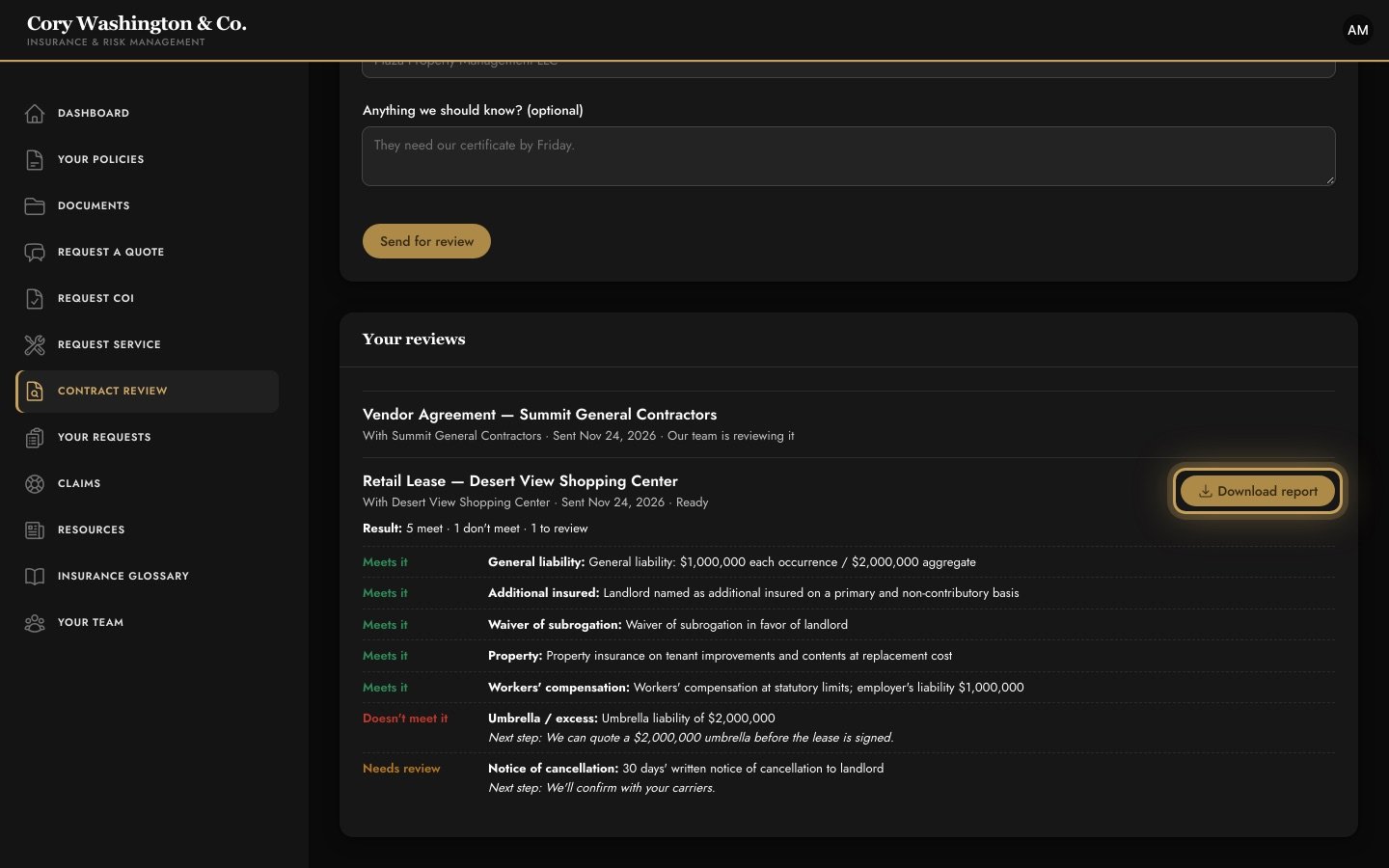
- Signing a lease or a contract with insurance requirements? Upload it under Contract Review.
- We check each requirement against your policies and send you a report showing what's met, what isn't, and what to do next - before you sign.
Your team and multiple businesses
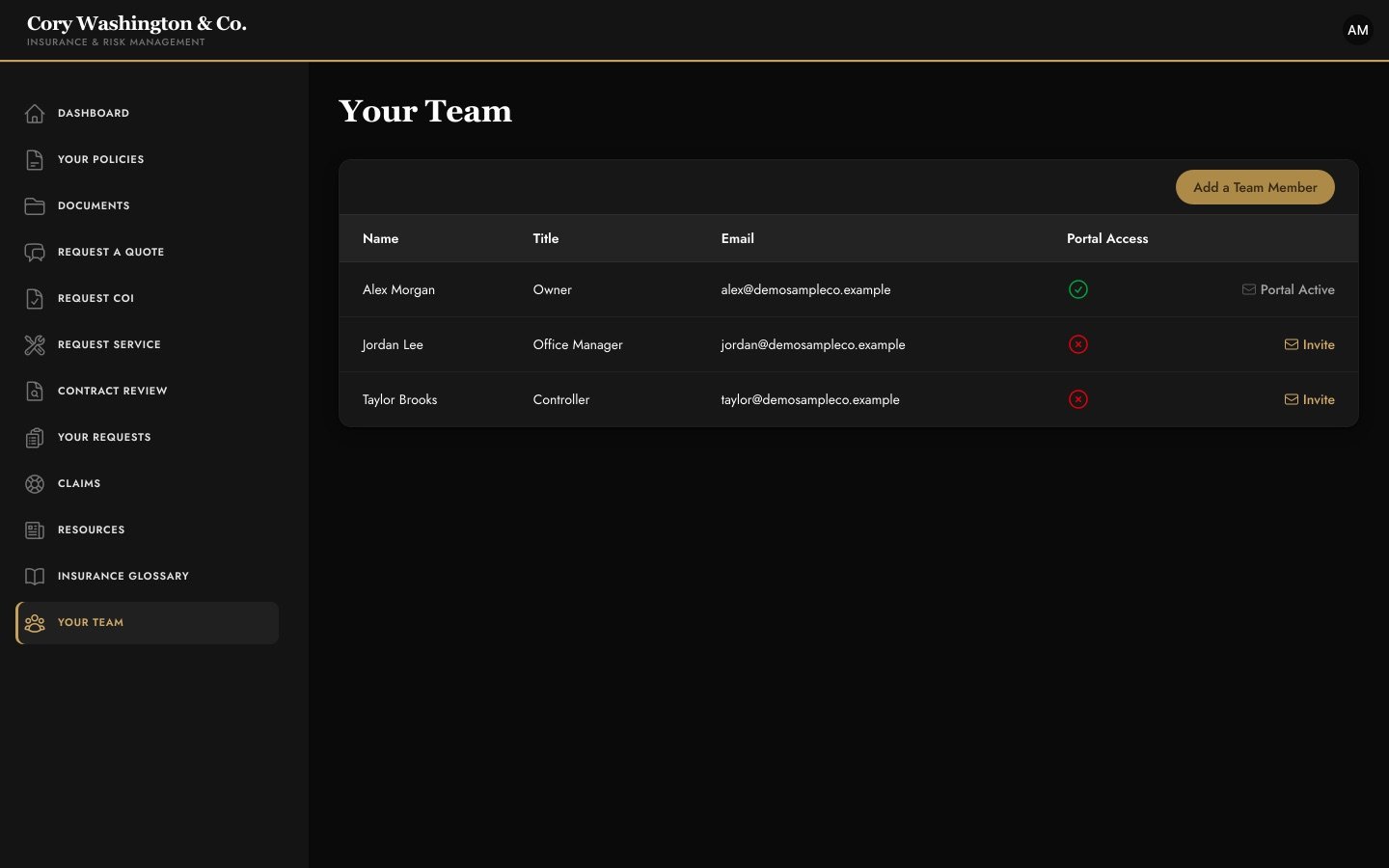
- Give coworkers their own sign-in from Your Team.
- If you have more than one business with us, switch between them from the account menu in the top corner.
Resources and the glossary
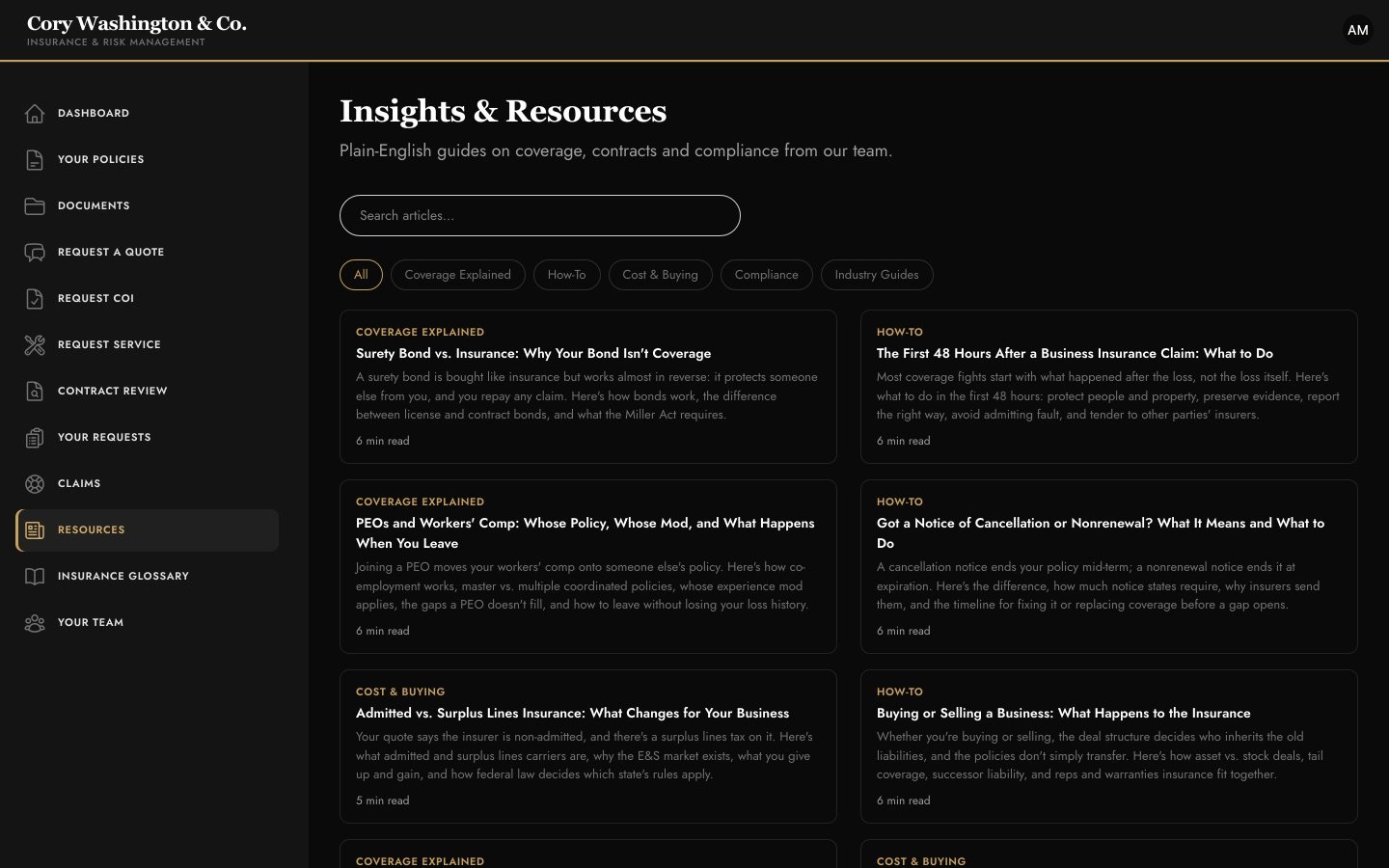
- Resources collects our plain-English guides on coverage, contracts and compliance, and the Insurance Glossary defines more than 700 insurance terms.
Client portal FAQ
How do I get a client portal login?
Ask us for an invite, or choose Sign up on the sign-in page and use your email and one of your policy numbers.
I forgot my password. What do I do?
Choose Forgot password to reset it, or skip the password and sign in with an emailed link or a texted code.
Can I request a certificate after hours?
Yes. You can send a request any time. Many certificates are issued right away when every check passes; anything that needs a closer look is reviewed by our team.
Is the client portal also an app?
Yes. Search "Cory Washington & Co." in the App Store or Google Play. The app has the same features, plus Face ID and notifications when something is ready.
Who can see my documents?
Only you and the coworkers you give access to. Your documents stay behind your sign-in.
Need a Hand?
If something isn’t where you expect it, or you’d rather talk it through, our service team is here to help.